Getting Started with VS Code, ArcPy, and ArcGIS Pro (Part 2)
Hopefully you’ve read through Part 1 of this post which is all about how to get VS Code up and running using the default installation of Python that comes with ArcGIS Pro. In Part 2, I’m going to cover how to work with Conda to install and use different versions of Python. ArcGIS Pro has a built in package management solution built using Conda, however I’ve found that sometimes it can be challenging to clone environments and install new packages. All of the package management can be done using Conda in VS Code which can make life a just a little bit easier.
Conda
Conda is an open source package management system that’s commonly used to manage libraries and environments for Python. It’s actually what Esri uses under the hood to manage all of the different Python libraries in ArcGIS Pro and while in theory you could work with that version, I find it easier to install a standalone version called Miniconda. Using Conda outside of Pro also gives you a good chance to understand how it works. Conda also gives you the ability to set up many different environments which can make it very easy to work on multiple projects at once. In general, you should set up different environments for each project because they might have different package dependencies. In practice however, I tend to just stick to a single environment unless I’m installing a package I know could cause issues with a previously installed package. Also, it’s important to note that you should not and cannot install packages to the default ArcGIS Pro Python environment. We’ll get into how to clone that environment and modify it later on in this post.
Before I go any further, it’s important to note some updated licensing changes from Anaconda. You can read more about those here. Esri also has some FAQ’s regarding their Anaconda license. Please read through those and make sure you’re following the terms of service.
Download and Install Miniconda
With all of that out of the way, now it’s time to download Miniconda. Conda has a great explanation about the difference between Miniconda, Anaconda, and even Miniforge (which could be better for your situation depending on licensing). You can download different versions but I find it best to download the most recent version of Python because you can always create environments with previous versions. Just as an FYI, I’ll be working in Windows.
Here’s the link to download the most recent version of Miniconda.

Once you’ve downloaded Miniconda, you can install it using whichever methods works best for you. If you’re doing this for fun at home, you’ll most likely want to just install it for All Users.
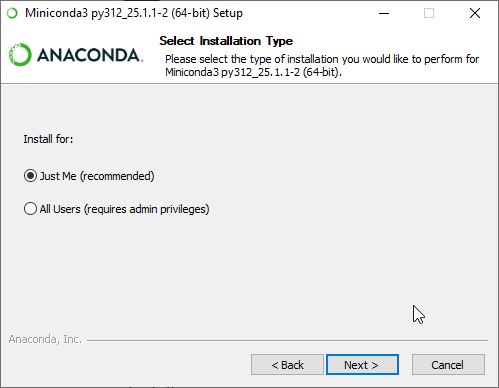
Accessing Conda
After you’ve installed Miniconda, there are two primary ways that you can access conda. The first is to use the Start Menu to access the Anaconda Prompt and the second is to initialize conda in your basic cmd prompt.
Anaconda Prompt
To open the Anacond Prompt, simply navigate to the Start Menu, and look for Anaconda Prompt which should be listed under Anaconda (miniconda) folder.
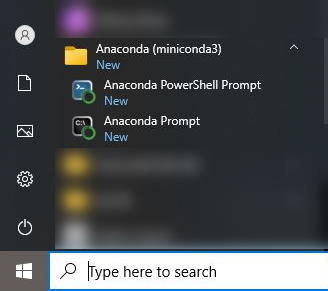
Once open, enter Python -V to check the version of Python and confirm that it’s working.
Python -VYou can also use conda info to check to make sure it’s installed.
conda infoInitialize Conda in Your Basic cmd Prompt
Another way to access conda is through the cmd prompt. To start the cmd prompt, simply type cmd into the Start Menu search bar. Once it’s open, you’ll need to initialize conda by entering the path to your conda.exe file followed by the word init. This should be located in your miniconda installation directory, in a folder called Scripts. For example, mine is C:\ProgramData\miniconda3\Scripts\conda.exe. Enter the text below into your command propt (but replace the conda.exe path with your own… and don’t forget the “”.
"C:\ProgramData\miniconda3\Scripts\conda.exe" initAfter you do that, you should get some messages about what was modified and then a line that says “For changes to take effect, close and re-open your current shell”.
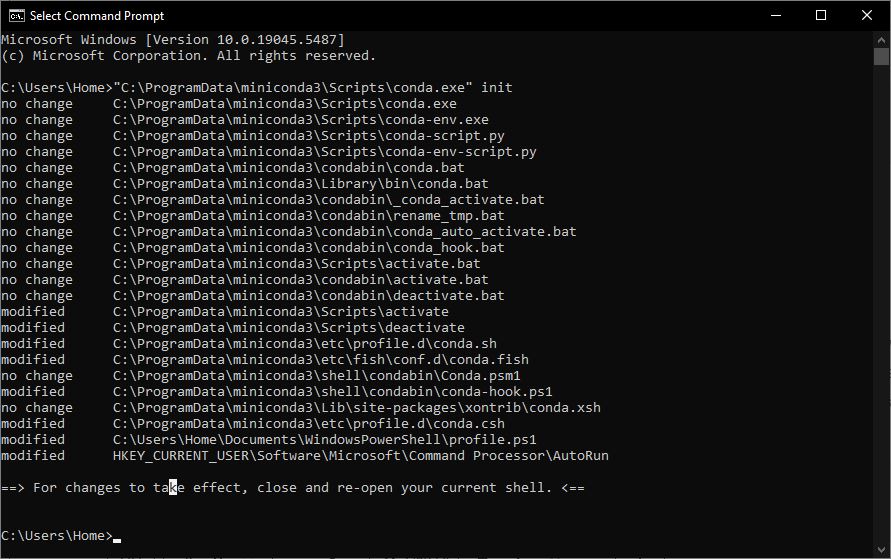
Once you close and re-open your cmd prompt, enter conda activate base to activate your default conda environment and then enter Python -V to check the Python version.
conda activate basePython -V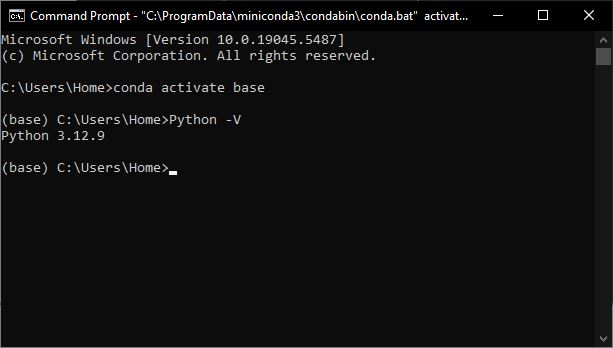
Now you’re ready to start cloning some environments!
Cloning Environments
As I mentioned earlier, one of the easiest ways to work with ArcPy in VS Code is to use the default Python environment that comes with ArcGIS Pro. This ensures that you’ve got everything you need to work with ArcPy (including proper licensing) outside of ArcGIS Pro. One challenge however, is that in order to not break ArcGIS Pro, you can’t add or remove packages from the default installation. This makes sense though, because it would be pretty disastrous to break the Python environment in ArcGIS Pro and then have to uninstall and reinstall everything.
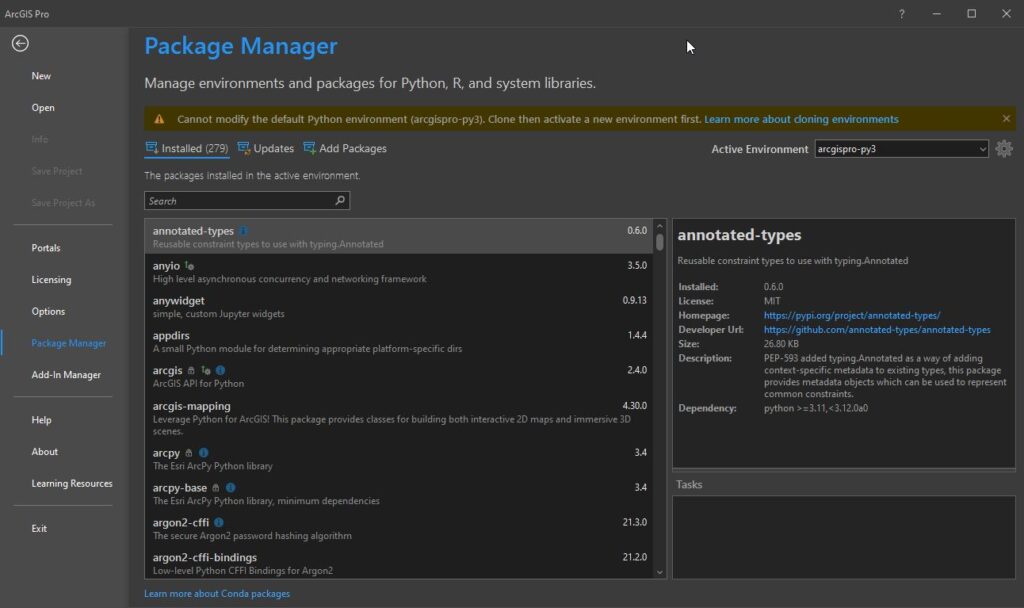
That’s where cloning comes into play. We can take the default ArcGIS Pro Python installation and make a copy of it. This will let us change it (and probably break it) to our hearts content. You can do this directly in ArcGIS Pro using the Package Manager (pictured below) or you can do it directly in VS Code using Conda in the command line. Even though the command line might seem a bit daunting, I promise you it’s not.
Running Conda in VS Code
In order to start using Conda in VS Code, you’ll need to open a new VS Code window and then create a new terminal. The easiest way to do this is to open the Command Palette using the F1 key or the Ctrl + Shift + P hotkey combination. Once open, search for New Terminal and then select Terminal: Create New Terminal. This should open a cmd line terminal at the bottom of the window. If it opens any other kind of terminal (Powershell, git, etc) check out the section in Part 1 where I describe how to change the default terminal.
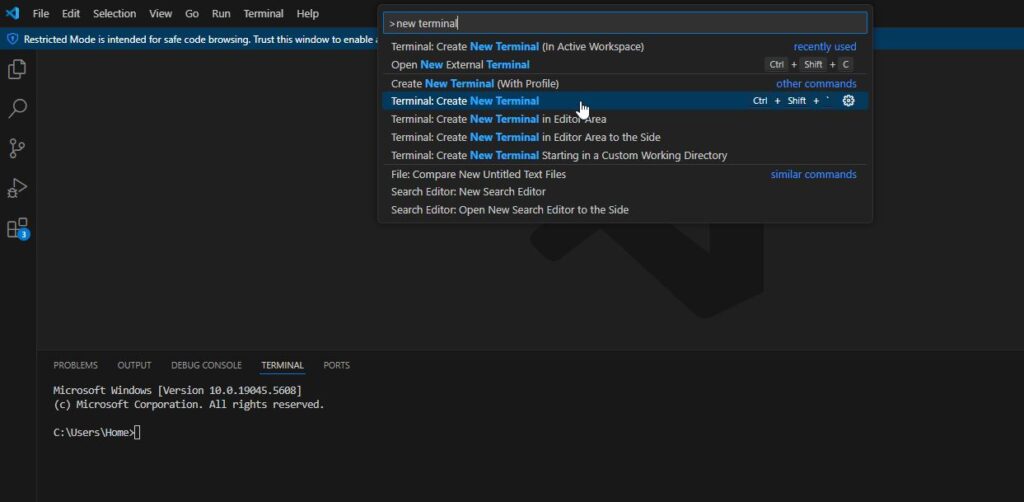
Similar to what we did earlier with the standalone cmd prompt, enter conda activate base to activate your default conda environment. The result should look identical to the standalone cmd prompt.
conda activate baseLet’s Clone!
Now that our Conda environment is active, we can clone our default ArcGIS Pro Python environment with one line of text conda create –name my_new_env –clone “C:\Program Files\ArcGIS\Pro\bin\Python\envs\arcgispro-py3”. conda create –name tells Conda to create a new environment and name it my_new_env. Make sure to replace the name with something a bit more useful. The –clone command points to python environment to copy. Here’s a really good cheat sheet of Conda commands. When this runs, it might take a while but it will eventually clone the python environment. Once that’s done you can test it by activating it in the cmd terminal. Now you’re free to use it by selecting your new interpreter in the command palette like I showed in Part 1.
Installing Packages
The final thing I want to cover is how to install packages in your new environment. You can either use Conda directly to install the package or you could use the Python Package Index (PIP). I usually stay consistent and install everything using Conda because it doublechecks all your packages work nicely together. Some reasons that you might want to install using Conda instead would be if the package isn’t available in a Conda channel or if you don’t have the correct licensing to install from the main Conda channel and the package isn’t in another one like Conda-forge.
Install Using Conda
The easiest way to install the package is to use the conda install PACKAGENAME command in your active terminal. If you want to specify a particular channel you can do that after the package name. Once Conda goes through all it’s checks, it will ask you if you want to proceed. Enter Y and then enjoy your new package when it finishes!
conda install jupyter
conda install jupyter --channel conda-forge 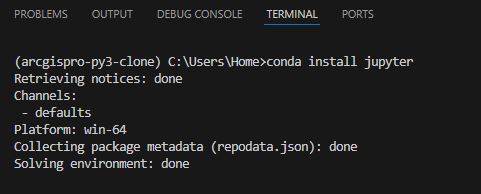
Install Using pip
Installing a package using pip is just as straight forward as using Conda. Just use the pip install PACKAGENAME command in your active environment. As you can see in the screenshot below, there are no checks or verification of requirements happening, the package just starts installing. This is where you’ll want to be careful because a package installed with pip could cause issues with a package installed with Conda.
pip install jupyter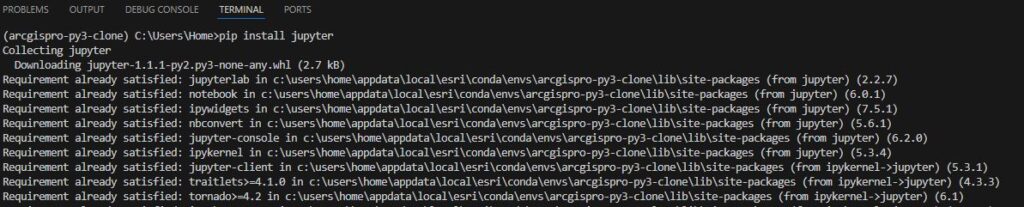
One final word of caution, you need to be aware of what environment you’re working in. All of the Conda commands are executed against the active environments. In case you forgot, here’s the link to the cheat sheet of Conda commands.