Getting Started with VS Code, ArcPy, and ArcGIS Pro (Part 1)
VS Code is an awesome free and open-source code editor that works particularly well with Python. It’s certainly not the end all be all of code editors and integrated development environments (IDE), but it’s fast, flexible, and easy to use which makes it very popular. It’s also super easy to use python installations that come with other software, like ArcGIS Pro. There are both Pros and Cons to using VS Code instead of the Notebook environment in ArcGIS Pro which is why I like to think about it as another tool in the geospatial health scientists toolbox. You shouldn’t exclude one over the other, but instead use whatever tool best fits your needs at the moment. This post has been divided into two parts. The first focuses on just getting started with Python in VS Code and the second dives into more detail on how to do more with Conda.
Download and Install VS Code
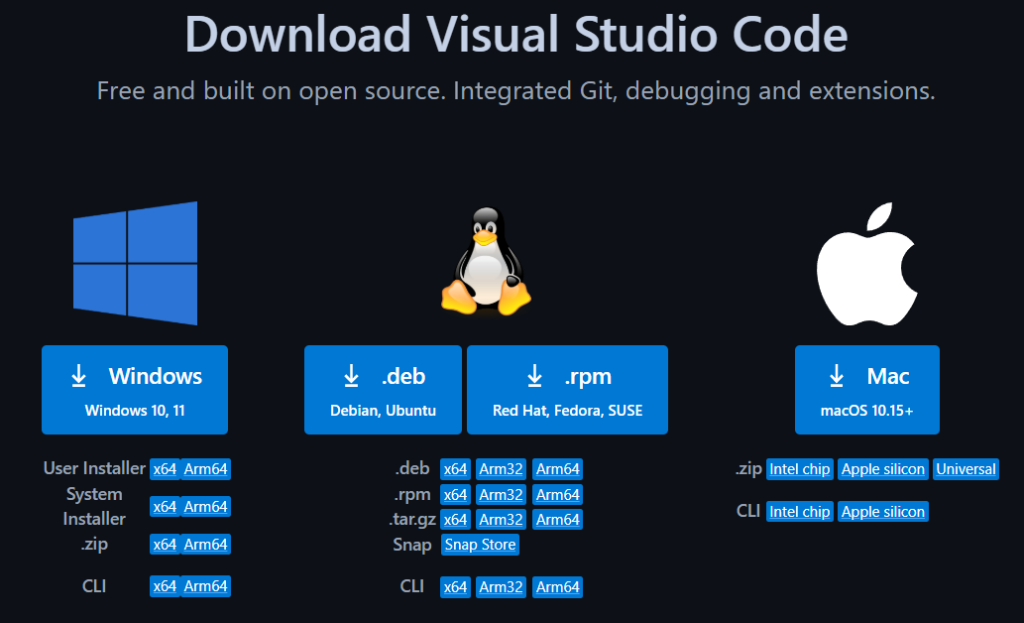
Once you download and install VS Code, the easiest way to get started is to install the Python extensions and use the Python library that came with ArcGIS pro. To download VS Code, just click this link, select either the User Installer or the System Installer for your operating system, and follow the installation instructions. If you don’t have admin rights to your computer you can use the User Installer, otherwise I’d recommend the System Installer.
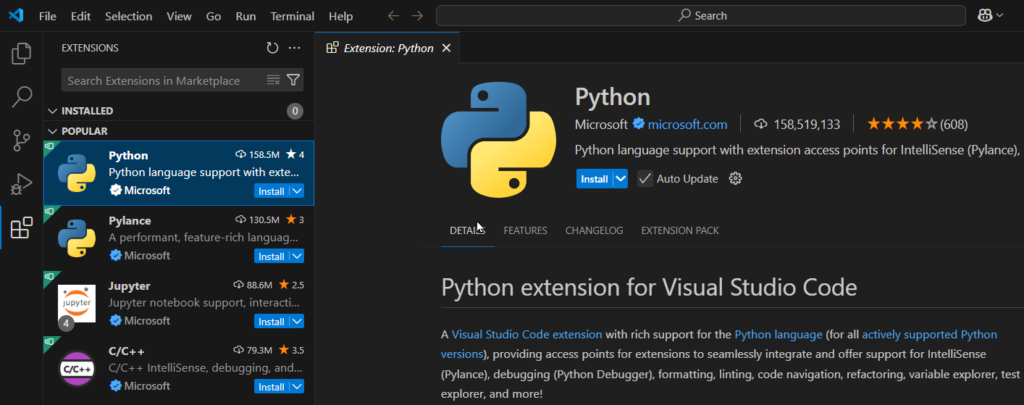
Once installed, there are a couple of extensions for VS Code that make working with Python super easy. To download these extensions, you can click on the Extension button on the left hand side of the screen or use the hotkey combination Ctrl + Shift + X. After the extension window is open, search for Python and then click install. It should install a few other extensions but if it doesn’t, you can search for and install Jupyter and Pylance.
Select Your Python Interpreter
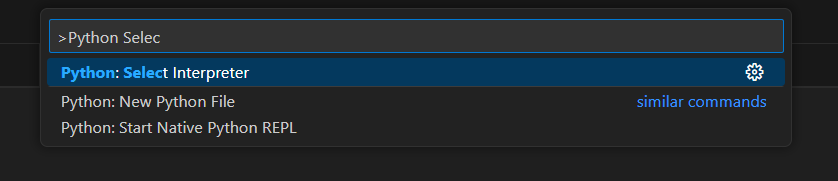
Before we get started working with Python in VS Code, we need to tell VS Code where our specific version of Python is on our computer. In this case, we’re going to use the version that came with ArcGIS Pro. To do this we’re going to use the Command Palette by either using the F1 key or the Ctrl + Shift + P hotkey combination. The Command Palette to almost all of the commands you’ll need and is the easiest way to interact with VS Code.
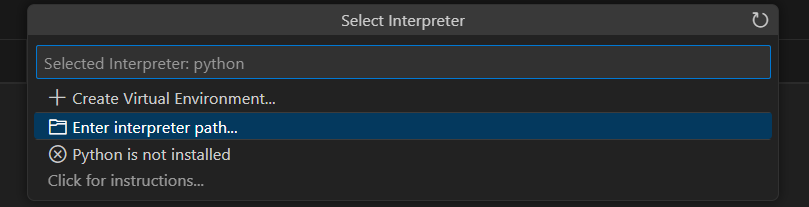
Once the Command Palette is open, start typing Python Select Interpreter and then select the Python: Select Interpreter option.
Next, select the Enter interpreter path… option and navigate to where the Python.exe is installed.
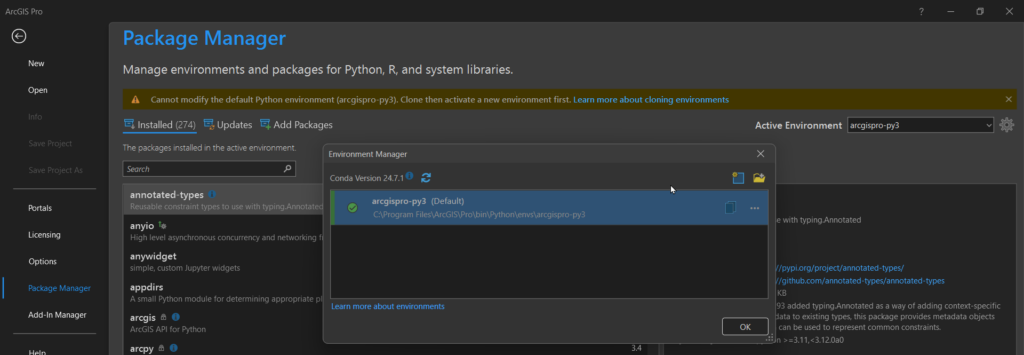
This is usually located at (C:\Program Files\ArcGIS\Pro\bin\Python\envs\arcgispro-py3\python.exe) but you can find the exact location by opening ArcGIS Pro and navigating to the Package Manager and then opening the Environment Manager using the gear icon in the top right. In Part 2, of this post I’ll discuss more about cloning environments so you can add additional Python Libraries.
Work with Python
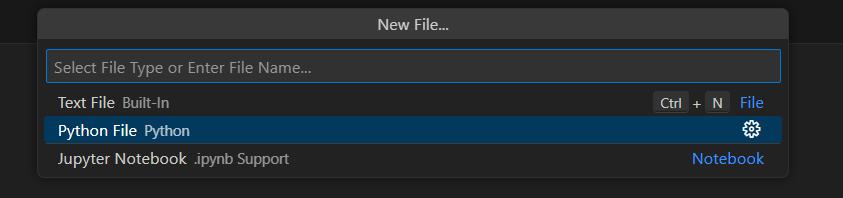
Now that we’ve got everything set up, we can actually start working with Python in a few different ways. In order to get started we can create a super basic Python script to work with. The easiest way to do this is to go to the File menu and select New File or use the hotkey combination Ctrl + Alt + Windows + N. This will open the Command Palette where it will prompt you to select a file type. Select Python and when the new file is created use the hotkey combination Ctrl + S to save the new file.
Now that we have a Python file, we can add some basic code that we can experiment with. I’ve included some code below that you can use to test things out. You’ll notice that as you start typing, the autocomplete takes over and proves extremely helpful! Once you’ve added the code, save the file.
import os

user = os.getlogin()

print("Hello {0}" .format(user))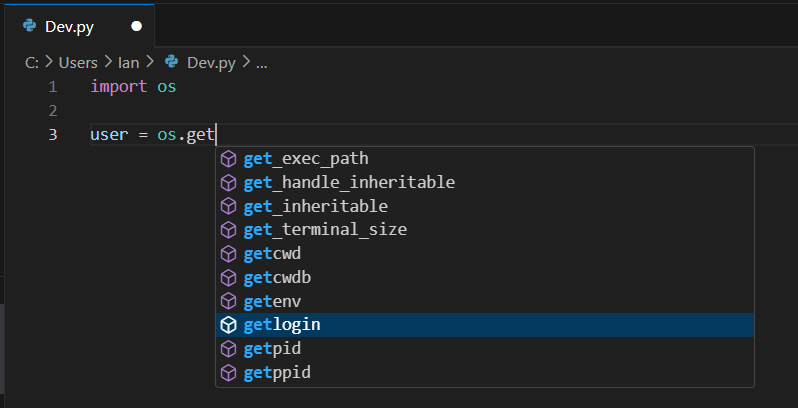
There are a few different ways to execute your Python code. You can run the entire script in the terminal, you can use the terminal as a interactive window to print results, you can create a interactive window outside of the terminal to print results, or you can create an interactive Jupyter Notebook window to interact with your code. I’ll outline each of the options below. Personally, I prefer the either Jupyter Notebook or Native Python REPL windows for testing code. This lets you have your code in a .py file and then easily develop and test different sections.
Run the Script in the Terminal
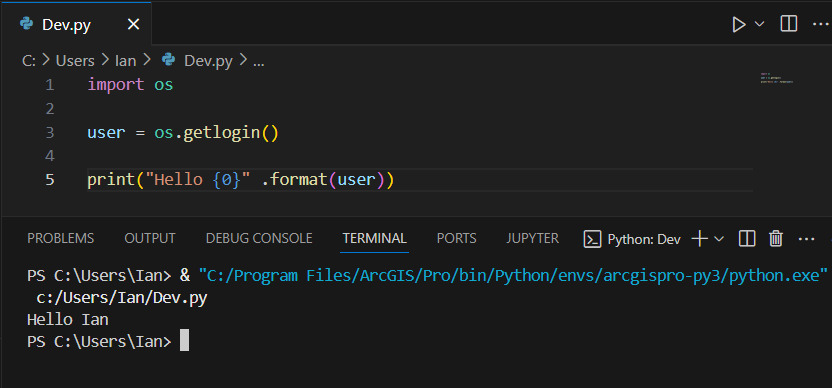
Running the Python code in the terminal executes the entirety of the saved Python script in the default terminal which is usually Windows PowerShell but can also be the Command Prompt window. This is useful for testing the entirety of a script at once, but other than that I don’t really use it that often. There can sometimes be permissions issues with Windows PowerShell so if you get an error trying to execute the script in the terminal, the easiest thing to do is change the default terminal to Command Prompt. This can be done by searching for Terminal: Select Default Profile in the Command Palette and then choosing Command Prompt (be sure to restart VS Code).
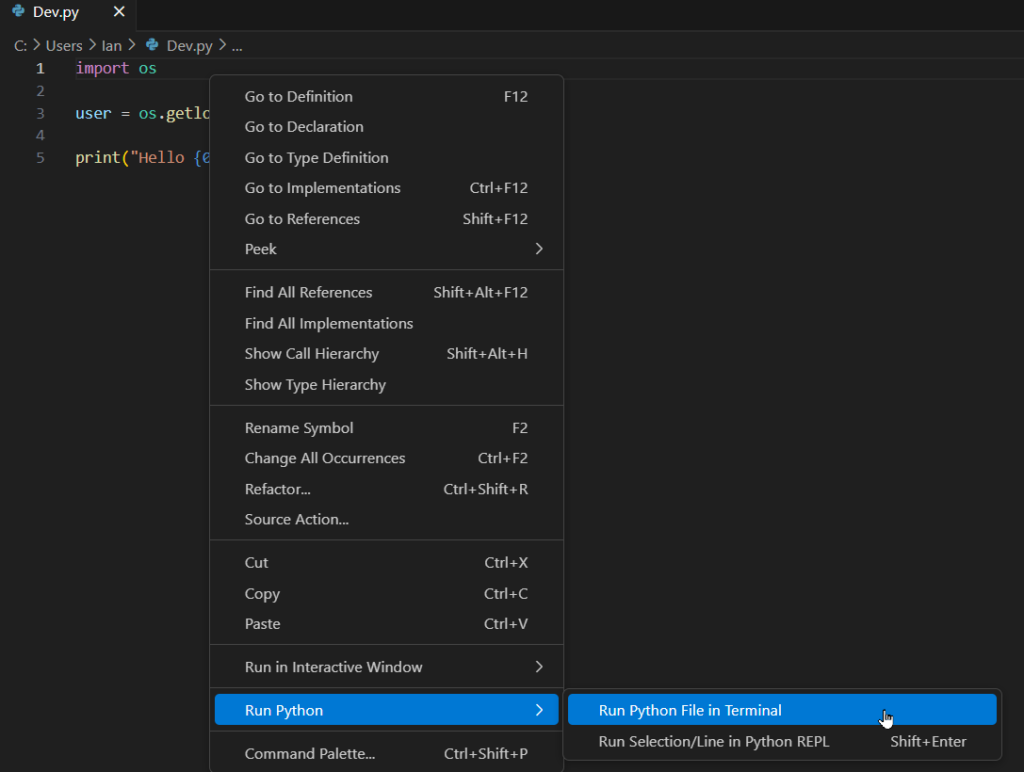
To run the script in the terminal, save the file and either right click anywhere in the code and select Run Python and then select Run Python File in Terminal
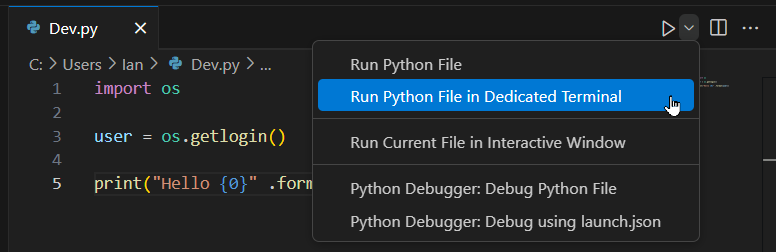
or use the Run button at the top right of the screen to select Run Python File in Dedicated Terminal.
Use the Terminal Read-Evaluate-Print Loop (REPL)
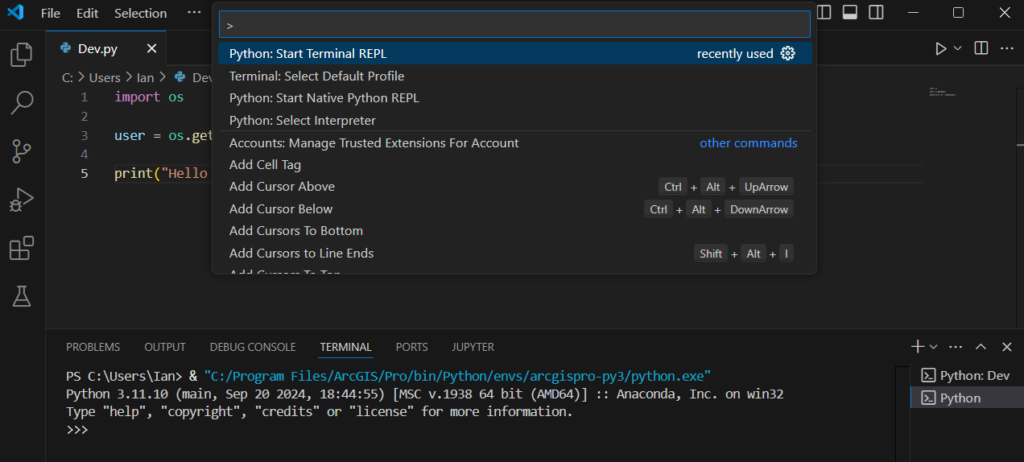
This method starts Python in the terminal in a way that lets you interact with and see outputs on a line by line basis. This is identical to starting the Python Interactive Window from the Windows Start Menu. To start this in VS Code, open the Command Palette and search for and select Python: Start Terminal REPL. This opens the terminal and you’ll know it’s ready to start taking commands when you see the >>> symbol. This method is probably the least used of all.
Use the Native Python REPL
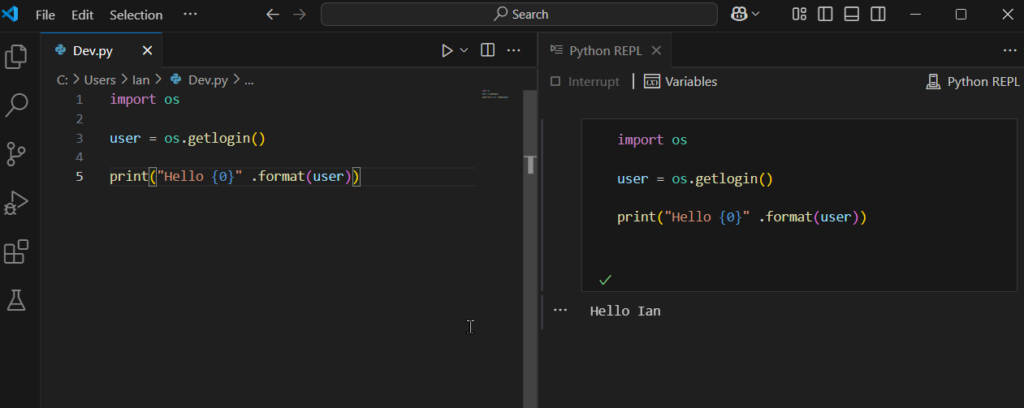
The VS Code Native REPL for Python takes the terminal REPL and adds additional functionality like code completion and variable tracking which lets you see all of the variables you’ve defined in the REPL window. This window is used pretty frequently because of the added functionality. To start the Native REPL window, open the Command Palette and search for Python: Start Native REPL.
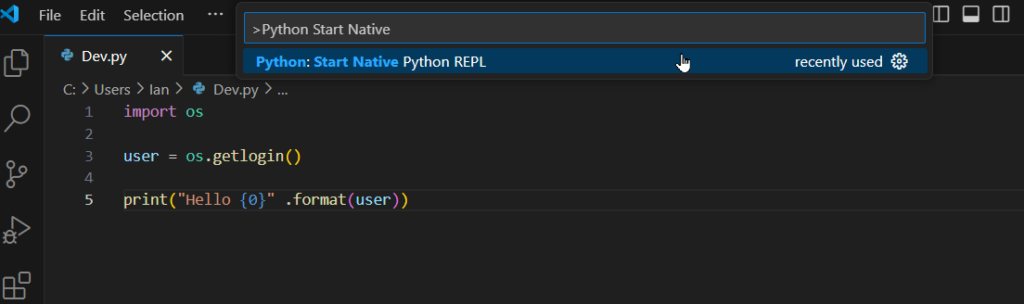
Once the window is open, you can copy and paste the code into the REPL window or use Shift + Enter to send the selection to the window.
Use the Interactive Jupyter Notebook Window
Finally, if you have the Jupyter extension installed, you can run an interactive Jupyter Notebook window instead of the Native Python REPL window. This is my preferred option for running Python code because it provides the most flexibility. The Jupyter Notebook window provides all the functionality of a Jupyter Notebook but with the added flexibility of working in a .py file. I like to have my .py file open where I’m brainstorming my code and then testing it in the Jupyter Notebook window. To create a new Jupyter Notebook window, open the Command Palette and search for and select Jupyter: Create Interactive Window.
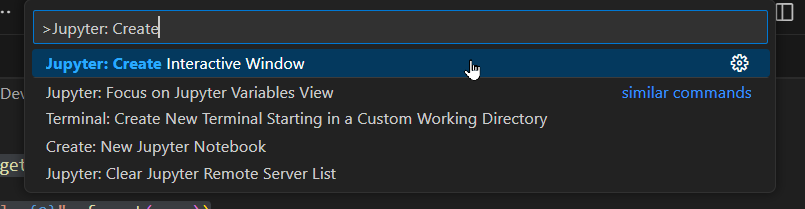
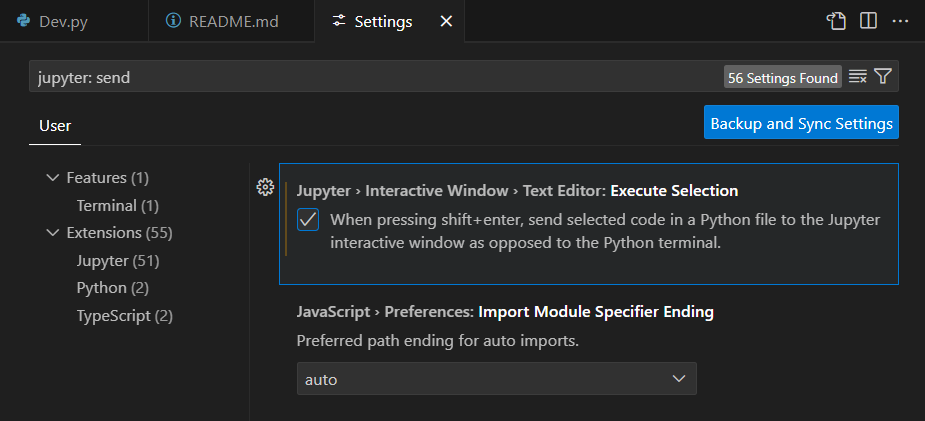
You can interact with this window much in the same way as the Native REPL window. If you want to use the Shift + Enter command to send the selection to the interactive Jupyter window, you might have to adjust some settings.
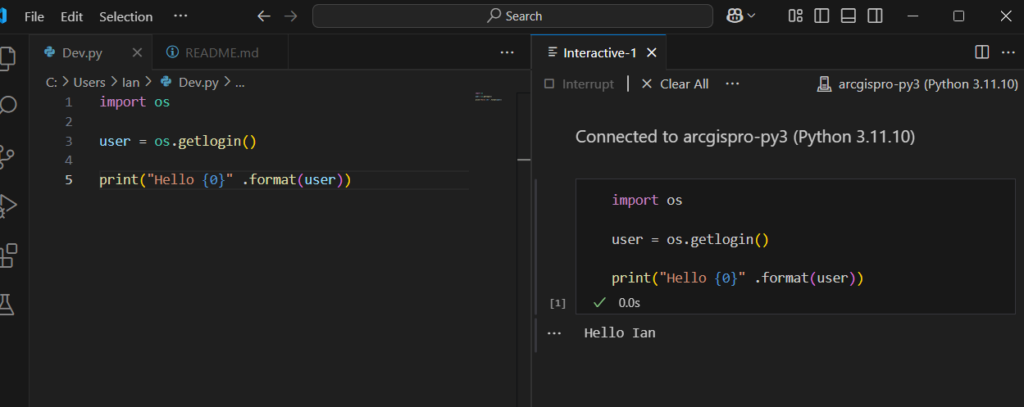
If you want to use the Shift + Enter command to send the selection to the interactive Jupyter window, you might have to adjust some settings. To ensure you can use Shift + Enter, for the Jupyter Notebook window, use the hotkey combination Ctrl + , to open the settings. Once the settings are open, search for Jupyter: Send Selection and make sure the check box under Jupyter > Interactive Window > Text Editor: Execute Selection is checked.
I realize that I covered a lot in this post so here’s a quick recap of how to get started with the basics. If you want to learn more about how to customize your Python environments in VS Code stay tuned for for Part 2!
# Install VS Code and Extensions
1. Download and install VS Code
    - Open VS Code once it's installed

2. Install VS Code Python extensions:
    1) Python
    2) Jupyter (if not installed with Python but it should be)

3. Install other extensions (optional):
    1) SQL Server (mssql)
    2) Rainbow CSV
    3) Markdown Preview Enhanced
    4) Any others you want

# Setup Python
4. Set up Python interpreter:
    1) Open Command Palette *(F1 or (Ctlr+Shft + P))*
    2) Search for and select **Python: Select Interpreter**
    3) Select **Enter path to a Python interpreter**
    4) Click **Find...**
    5) Browse to the python.exe file from pro

5. Update settings:
    1) Open Settings (Ctrl + ,)
    2) Search for **Jupyter: Send Selection To Interactive Window**
    3) Ensure box is checked

# Get started with a Python file
6. Create a new .py file
    1) File >> New File... >> Dev.py
    2) Save it somewhere

# Interactive Window (Jupyter Notebook)
7. Open the Interactive Window
    1) Open Command Palette *(F1 or (Ctlr+Shft + P))*
    2) Search for and select **Jupyter: Create Interactive Window**
    3) Shouldn't have to selec the Kernel